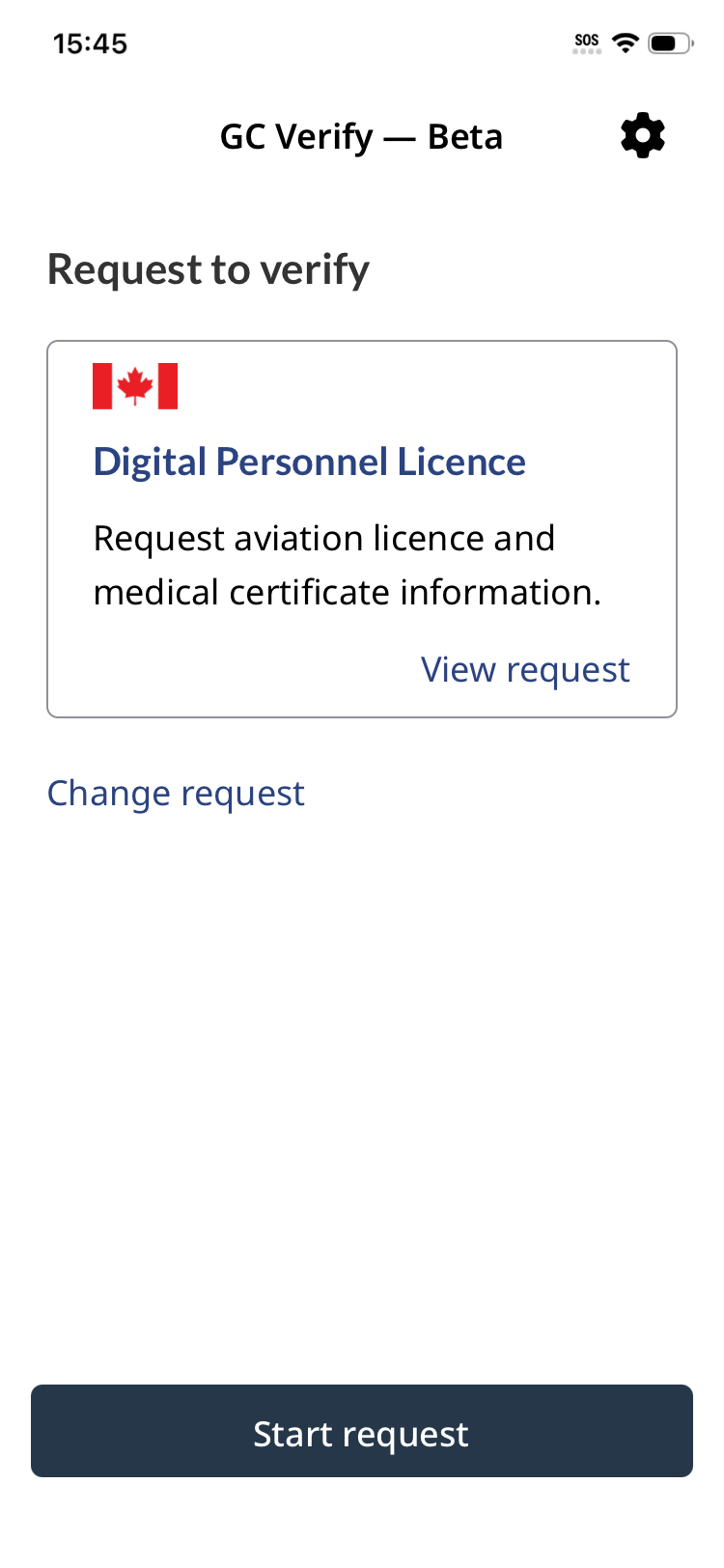
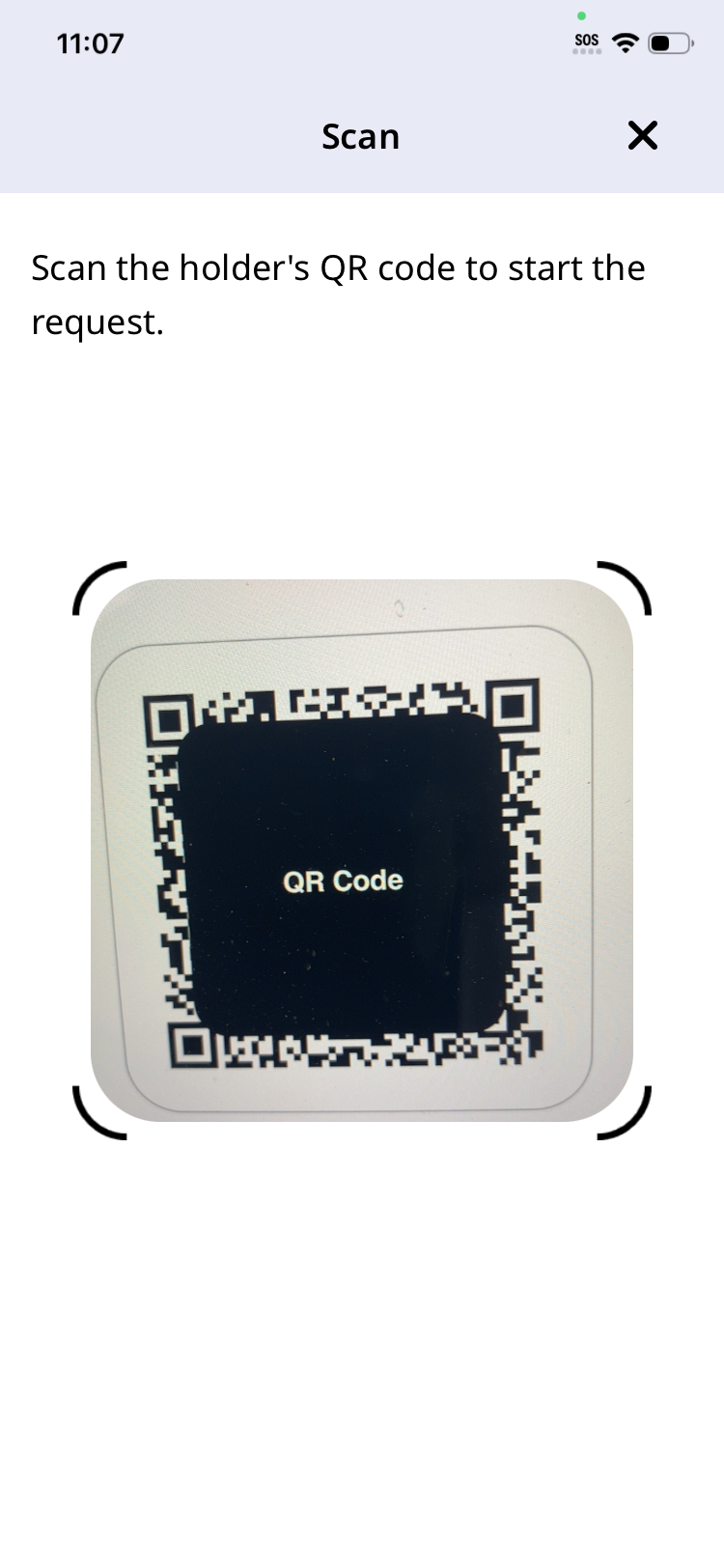
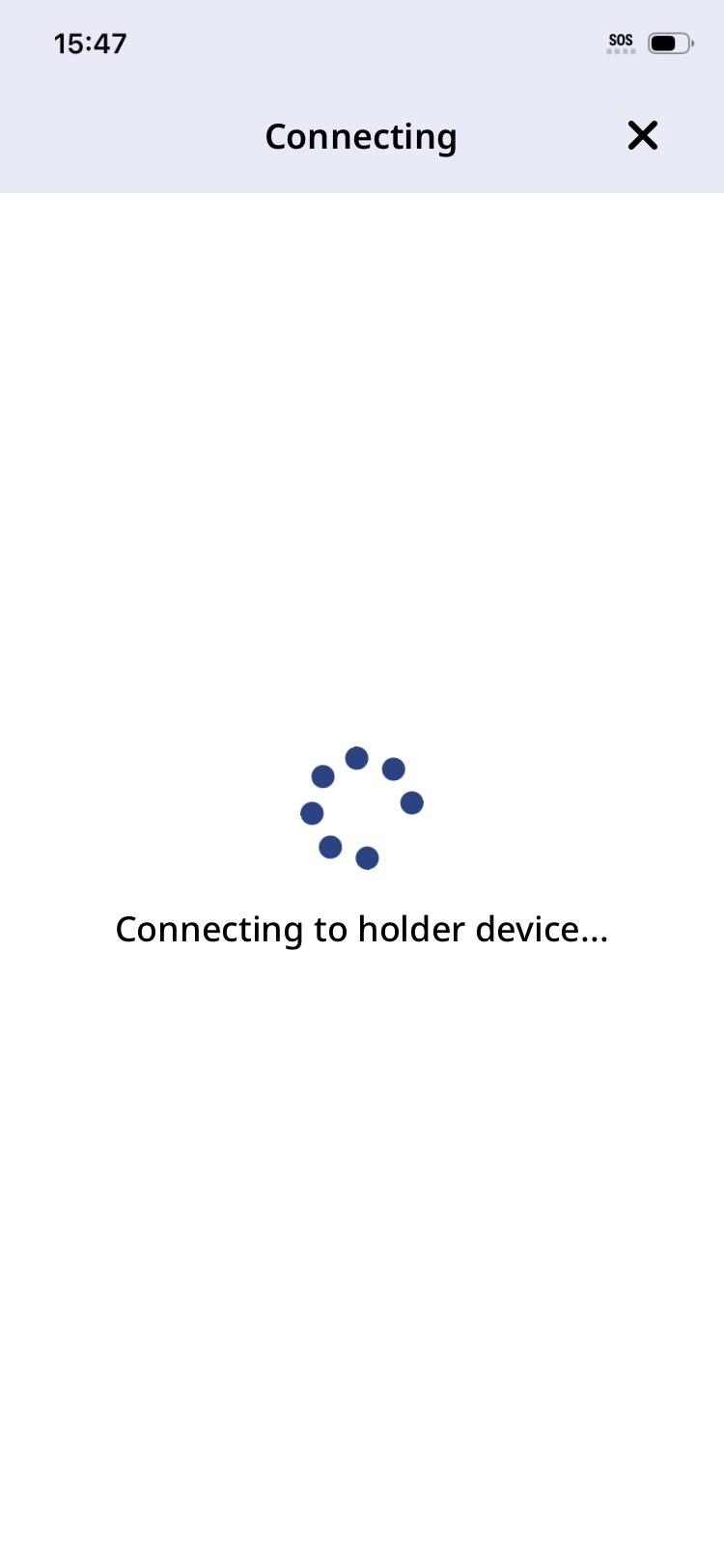
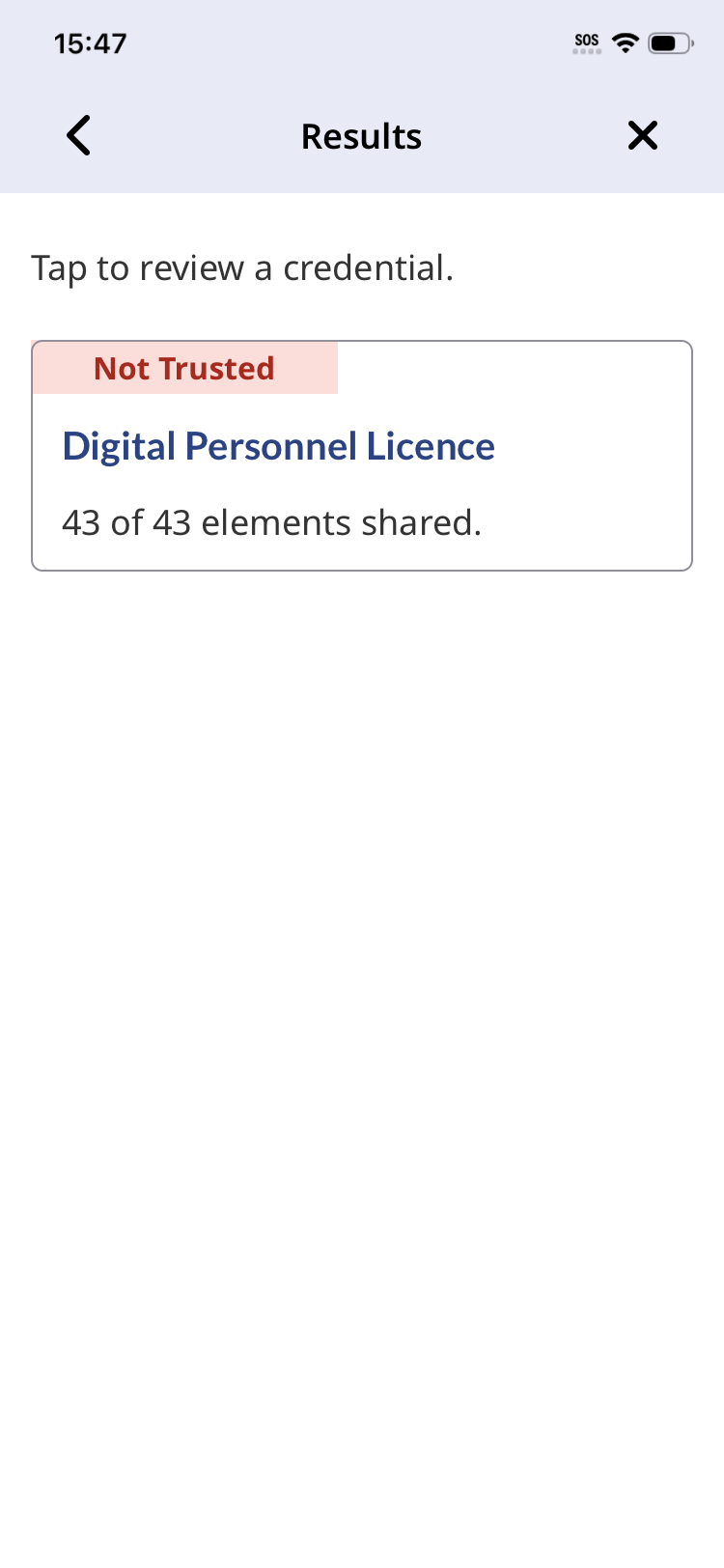
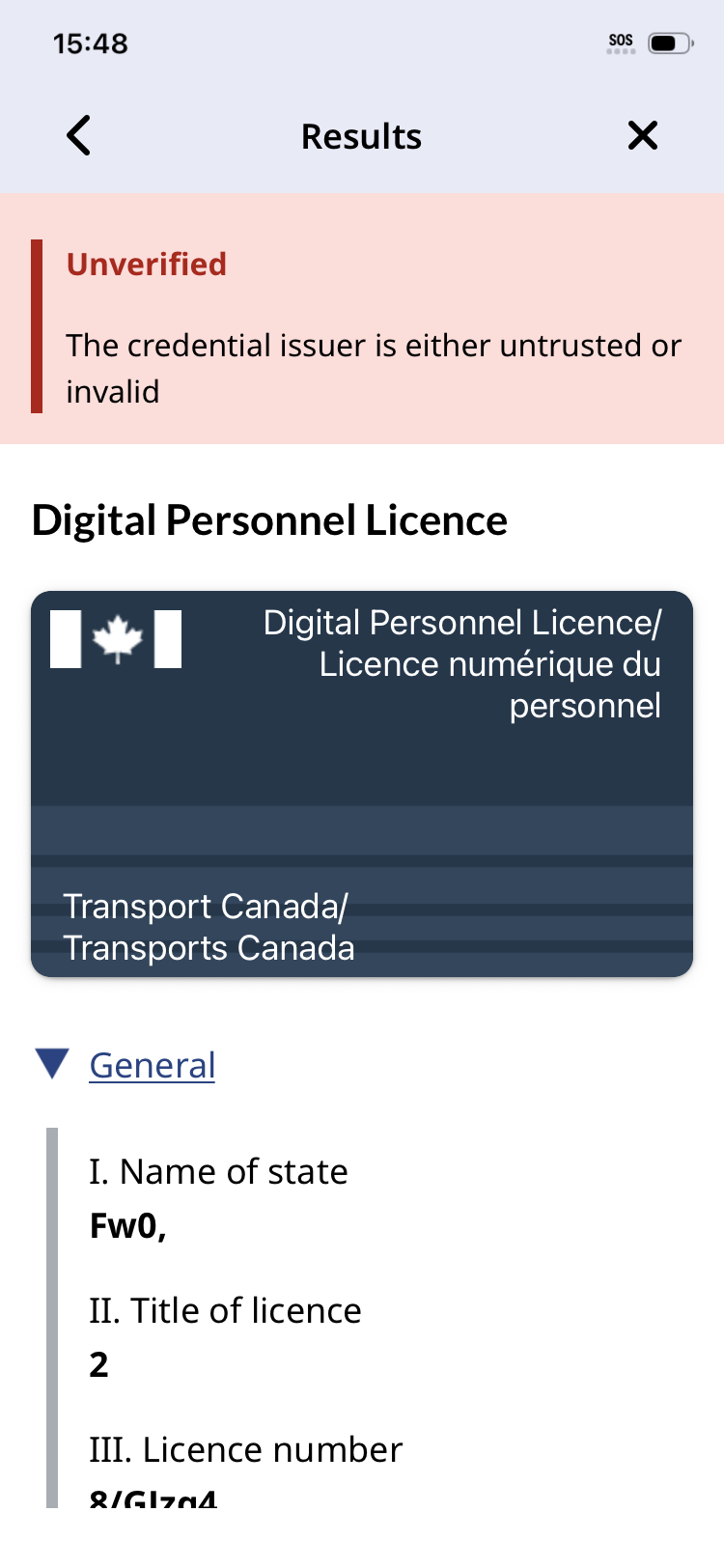
This page supports review testing of the GC-Verify application, which allows a verifier to request and confirm a digital credential held in GC-Wallet.
The review flow requires two devices: one running GC-Wallet to present the credential, and a second running GC-Verify to scan and verify it. This page provides an issuance QR code to load the test credential into GC-Wallet on Device 1, along with screenshots and instructions for triggering the verification between the two devices.

Install on your first device. This app holds the credential that will be verified.

Install on a separate second device. This app scans and verifies the credential.
ONLINE ISSUANCE |
If you have already issued this credential you can this step. | ||||
|
Device 1 — GC-Wallet
Issue a credential to GC-Wallet before proceeding to verification
|
|||||
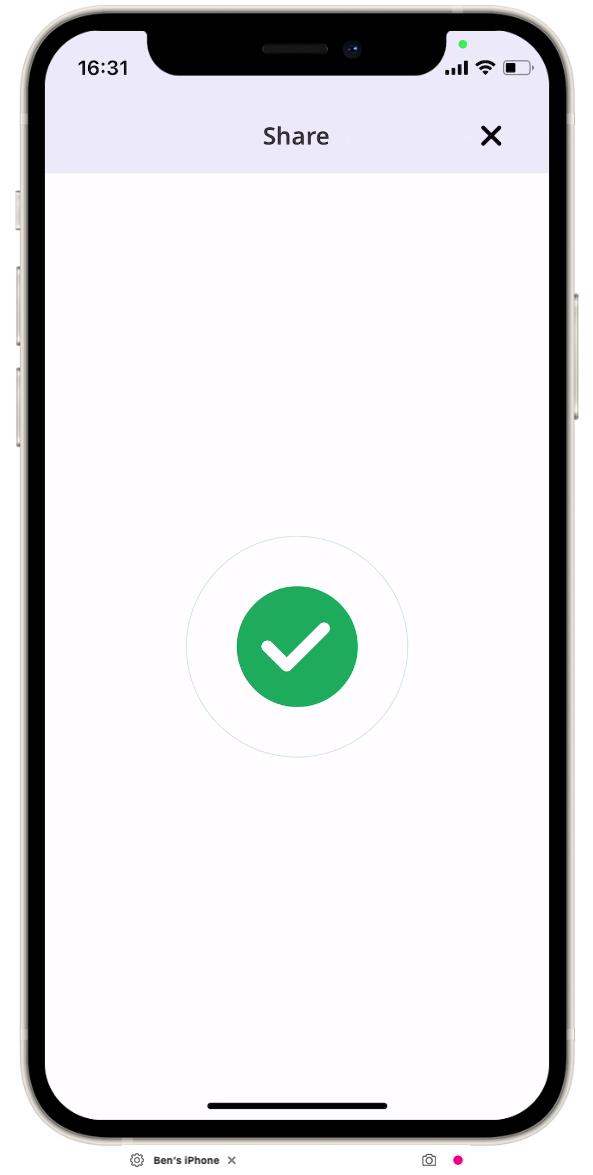
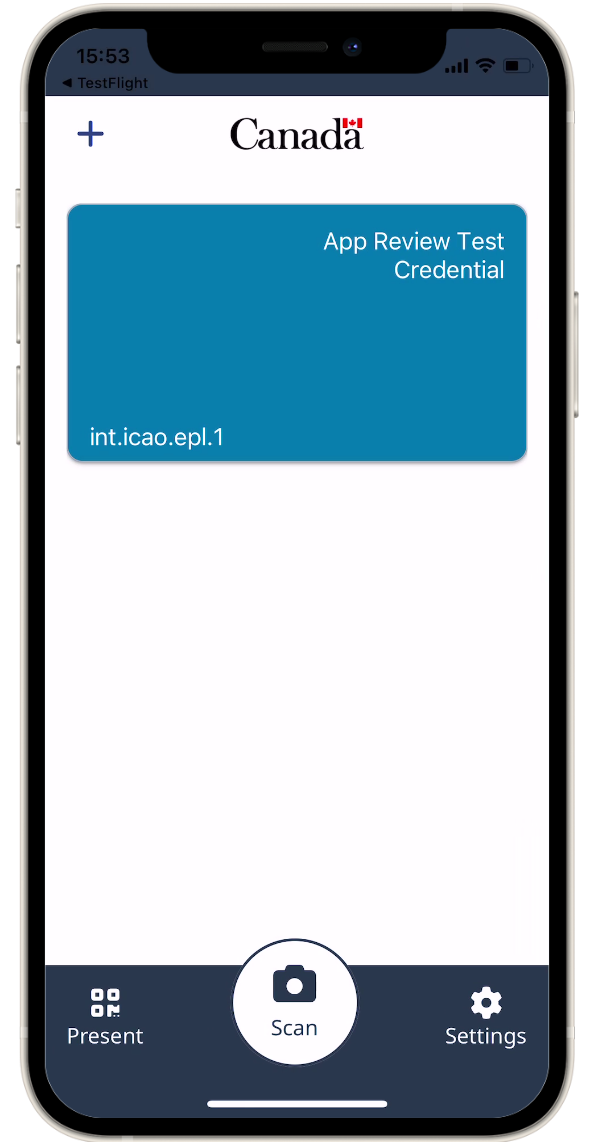
| 1. Open the GC-Wallet application | 2. Click the Add Credential button | 3. Scan this QRCode | 4. Click Accept when prompted. | 5. You should see this Check mark screen. | 6. You should see the credential in the wallet. |
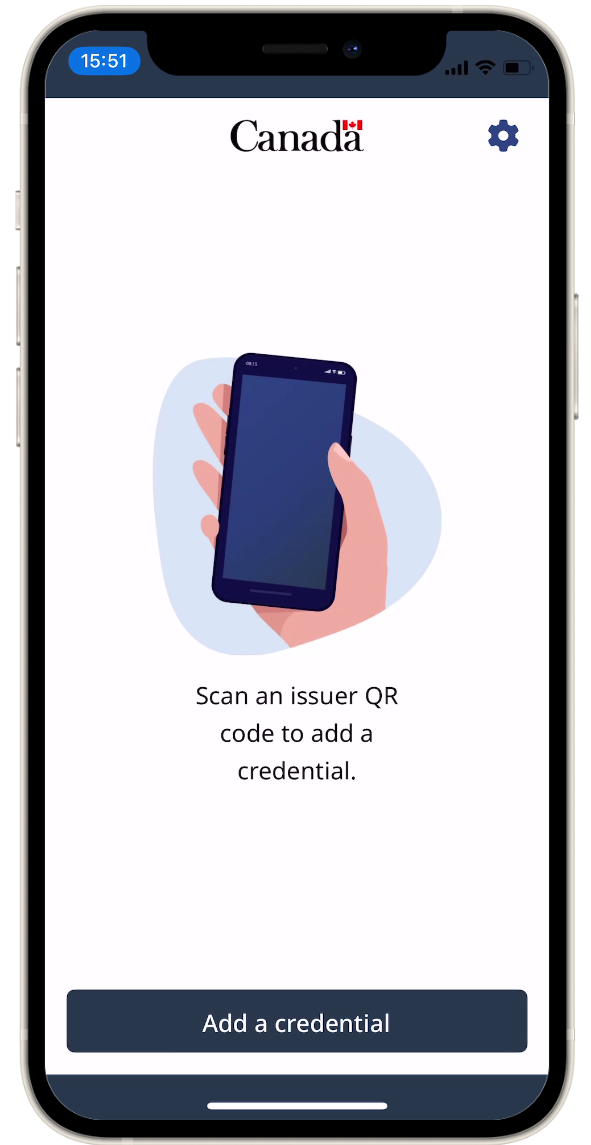
|
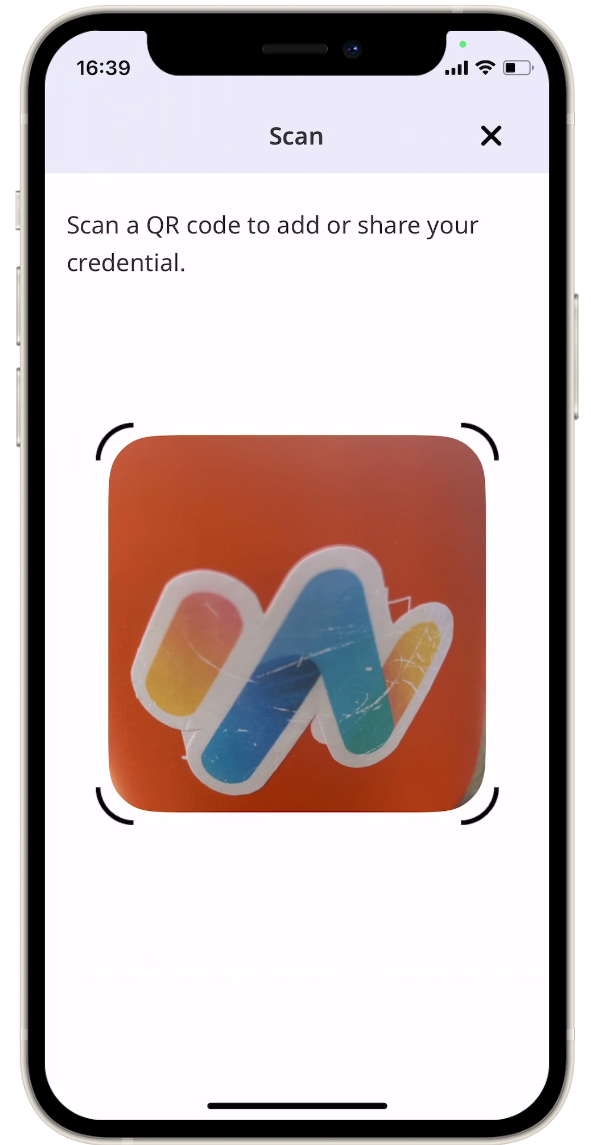
|
|
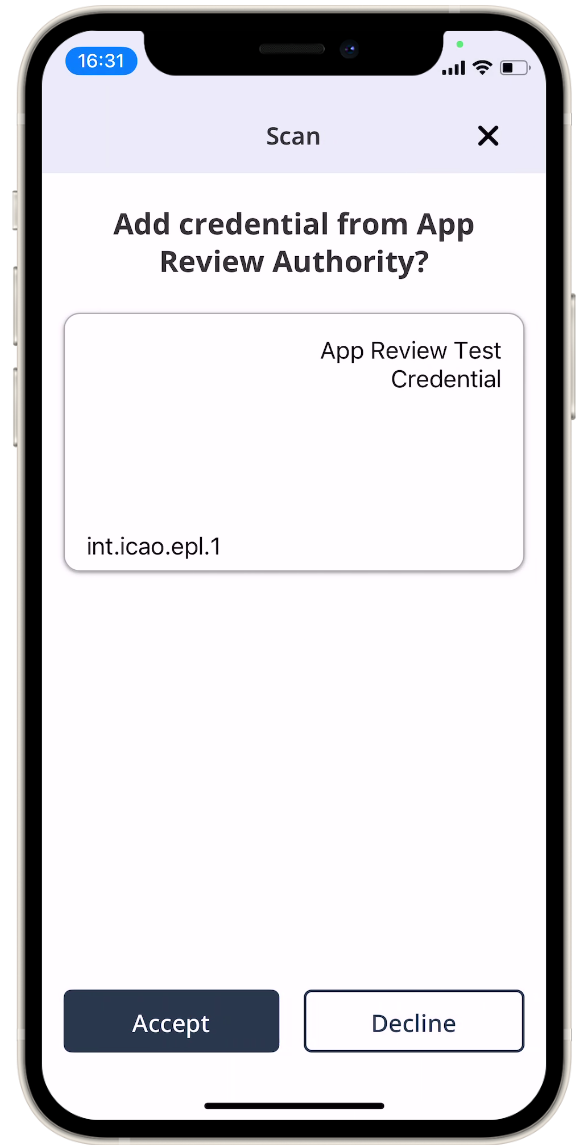
|
|
|
Device 1 — GC-Wallet
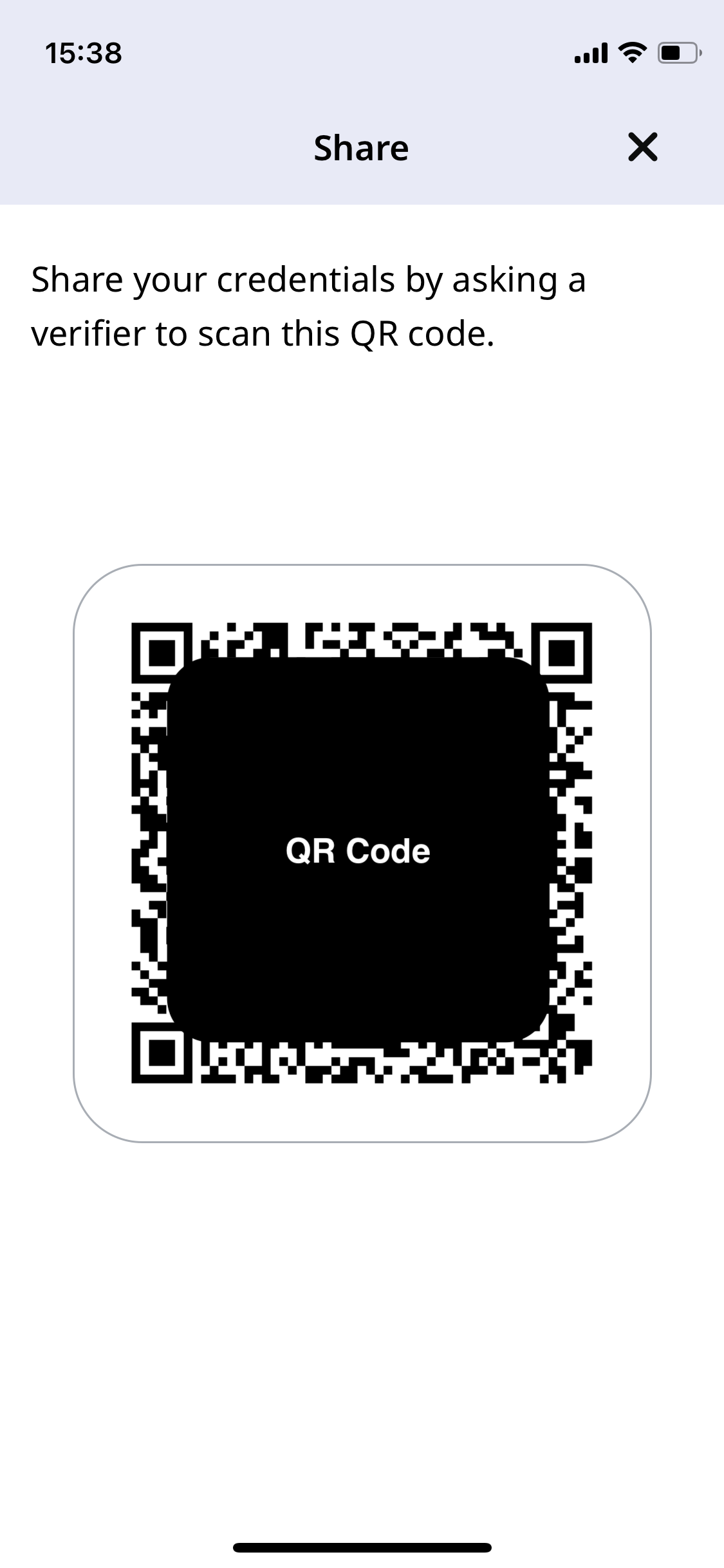
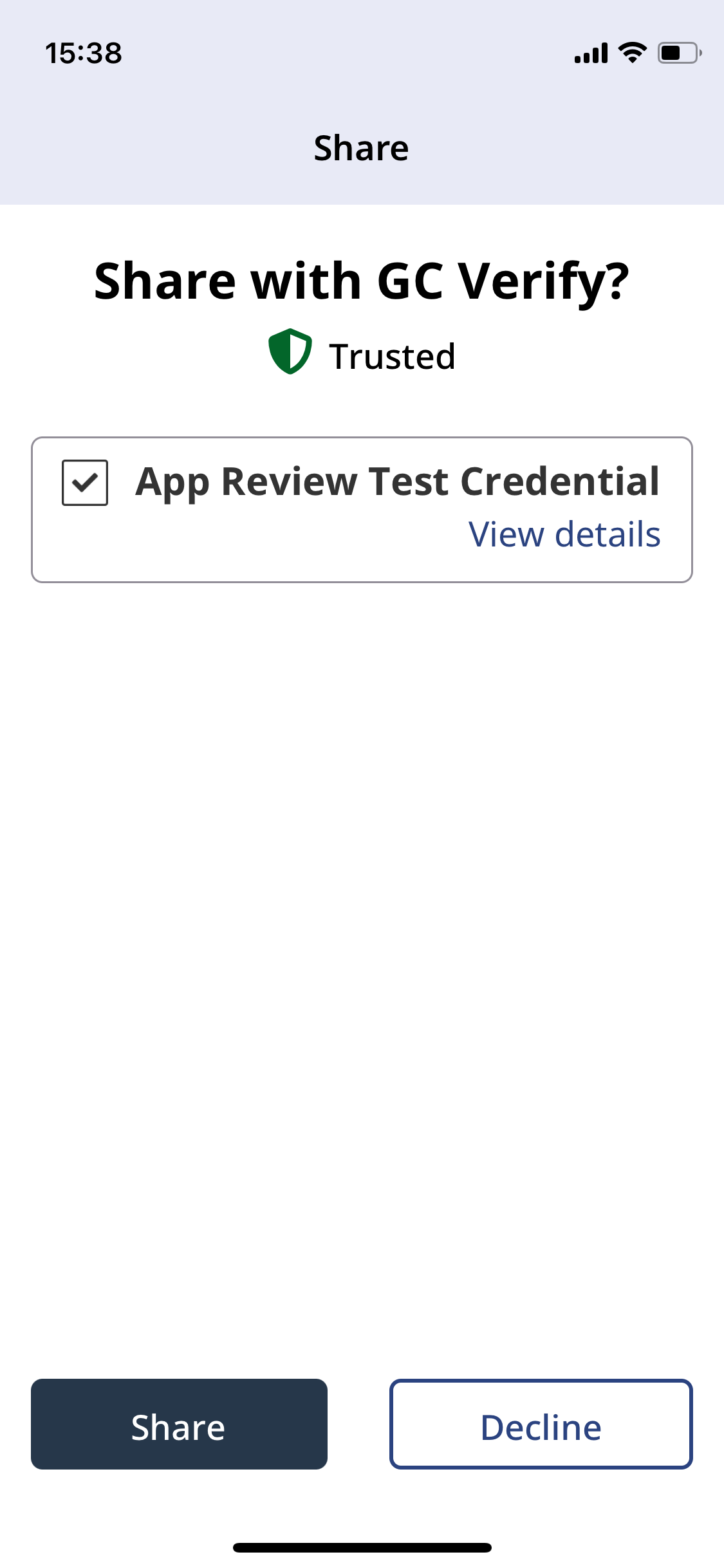
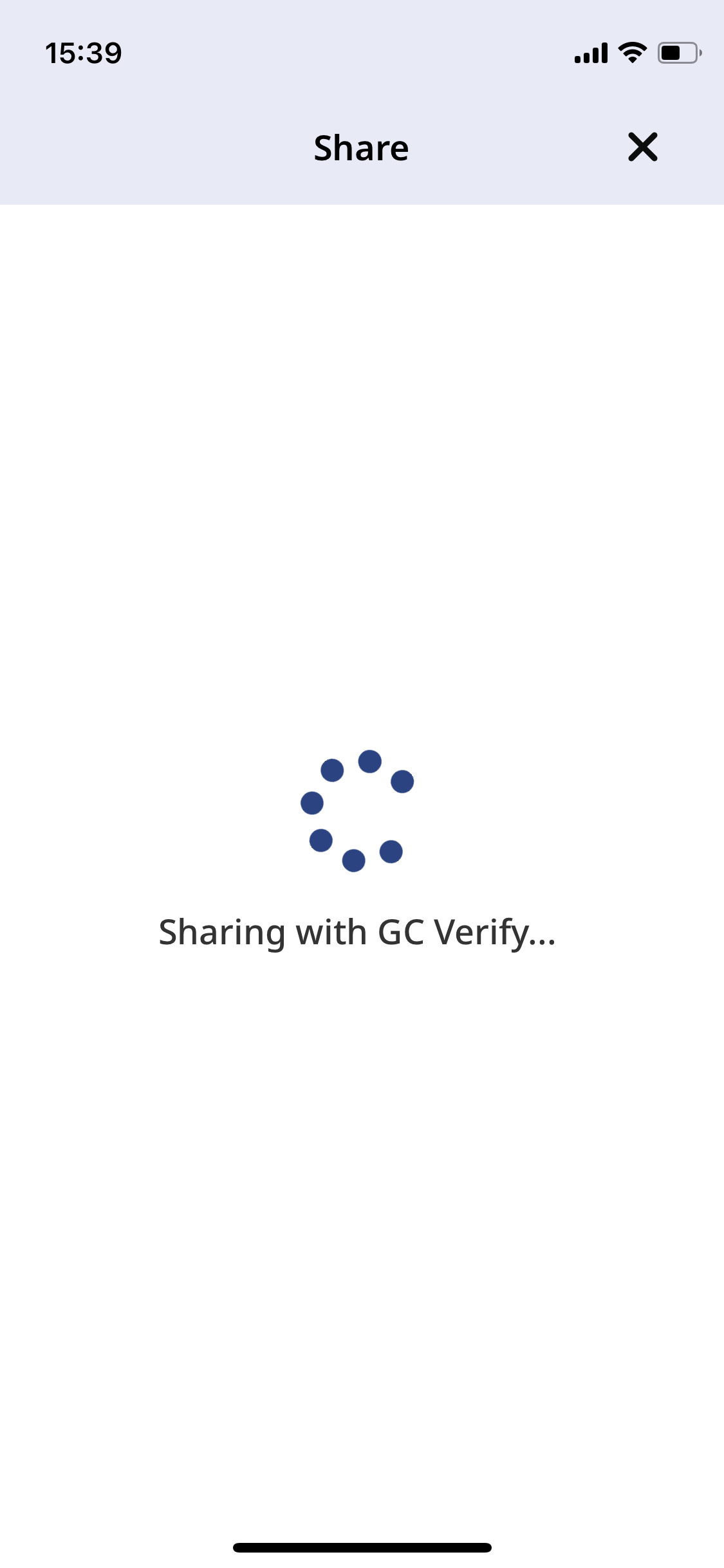
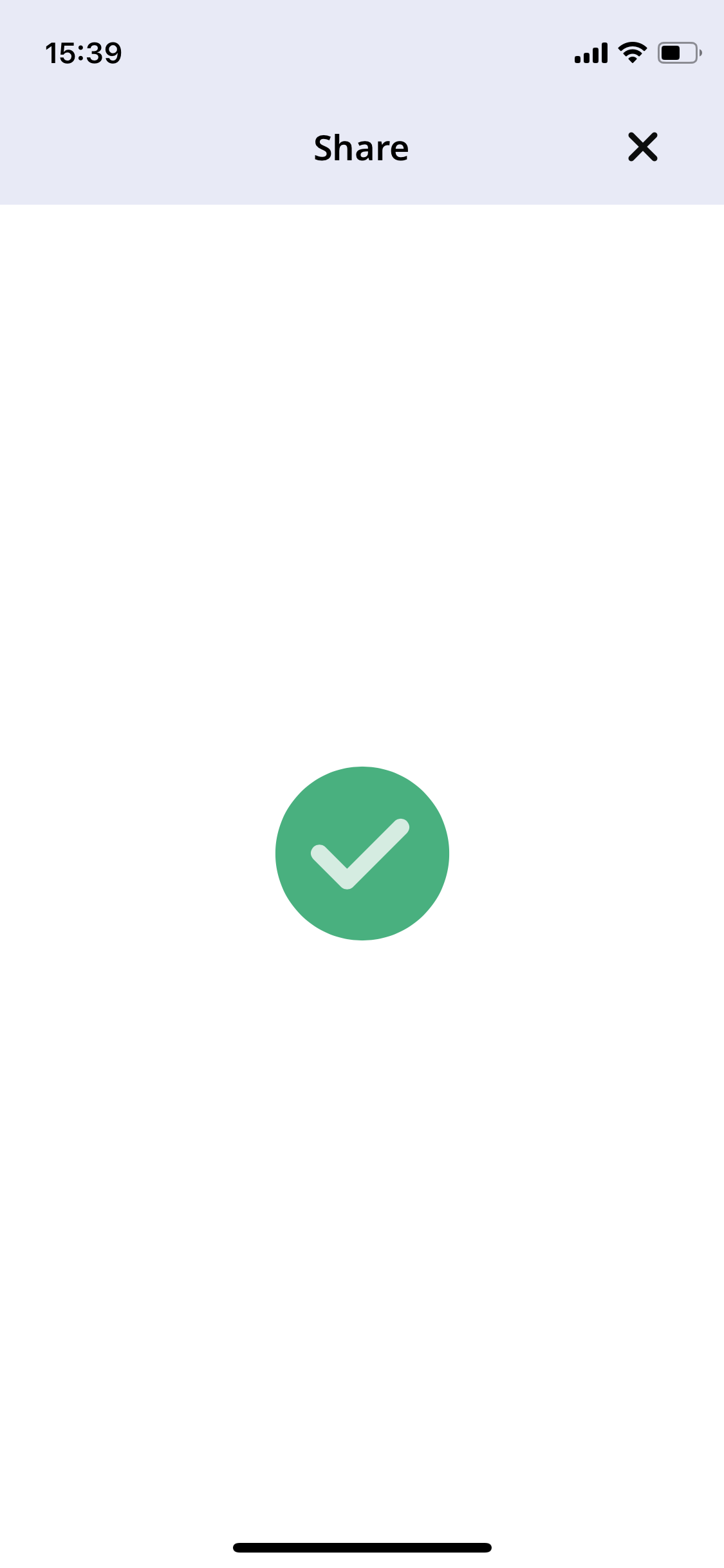 Device 2 — GC-Verify